
Blog
How to Monitor In-Game Temperature and FPS in Real Time with Smart Game Booster

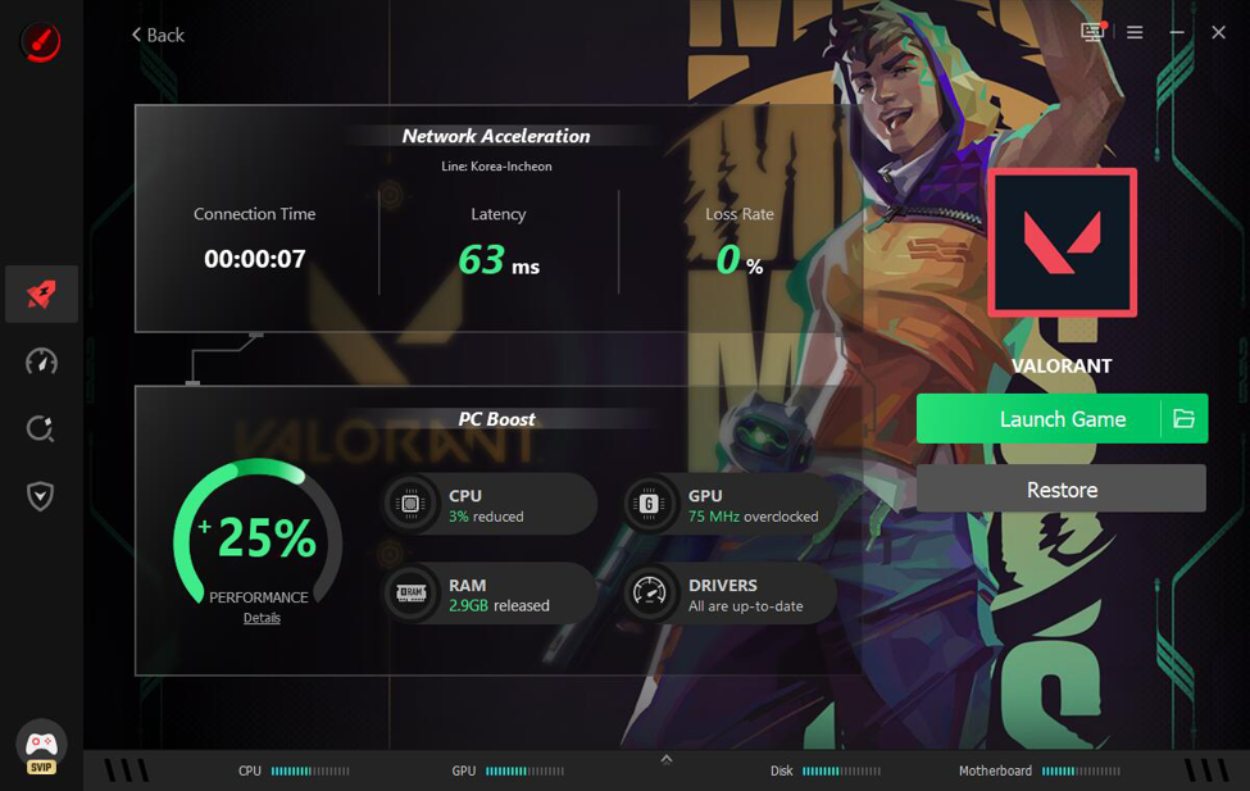
When a match gets intense, overheating hardware and sudden FPS drops can destroy your aim, timing and overall experience. Instead of guessing why a fight stuttered or why a crash happened, you need clear, live data on how your PC is coping. Smart Game Booster is designed to give you that visibility while delivering a smoother, more seamless gaming experience through one-click acceleration for both hardware and network.
What is Smart Game Booster?
Smart Game Booster is a Game Booster utility for Windows that integrates performance optimization, network acceleration, compatibility detection, hardware monitoring and security protection into one gamer-focused program.
You can use it to:
- Boost CPU and GPU performance and free RAM for higher, more stable FPS.
- Cut ping and packet loss by routing game traffic through dedicated acceleration servers.
- Track hardware temperature and usage in real time, with alerts if overheating occurs.
- Check whether your PC can run specific titles using a massive compatibility database.
The product is positioned as a universal solution for gaming PCs, covering a wide range of hardware, games and usage scenarios on Windows 7 through Windows 11.
Product Features: Real-Time Temperature and FPS Monitoring
Real-Time Monitor
Smart Game Booster includes an Optimized Real‑Time Monitor that continuously tracks hardware temperature and resource usage while you play. CPU, GPU, RAM and other key components are observed, and the monitor sends timely alerts if temperatures move into dangerous levels, helping you protect your devices before throttling or failure occurs.
This gives you:
- Live insight into how hard your CPU and GPU are working.
- Early warning signs when cooling is not sufficient.
- A way to judge whether your system settings are too aggressive for long sessions.
In‑Game HUD
To make the data accessible, Smart Game Booster offers an in‑game HUD overlay. Once enabled, the HUD displays FPS, temperatures and usage percentages directly inside your game window, without requiring you to alt‑tab or open separate tools.
You can:
- Place the HUD in a corner of the screen so it does not block health bars or crosshairs.
- Glance at FPS to see how stable your frame rate is during team fights or large open areas.
- Watch temperature bars while you play, adjusting graphics or session length if they climb too high.
How to Use Game Booster to Monitor Temperature and FPS
1. Install and open Smart Game Booster
Download Smart Game Booster from the official site and install it on your Windows PC. Open the main interface and add your favourite titles (local and web games) to the built‑in library so you can launch and accelerate them from one place.
2. Enable PC Boost and Super Boost
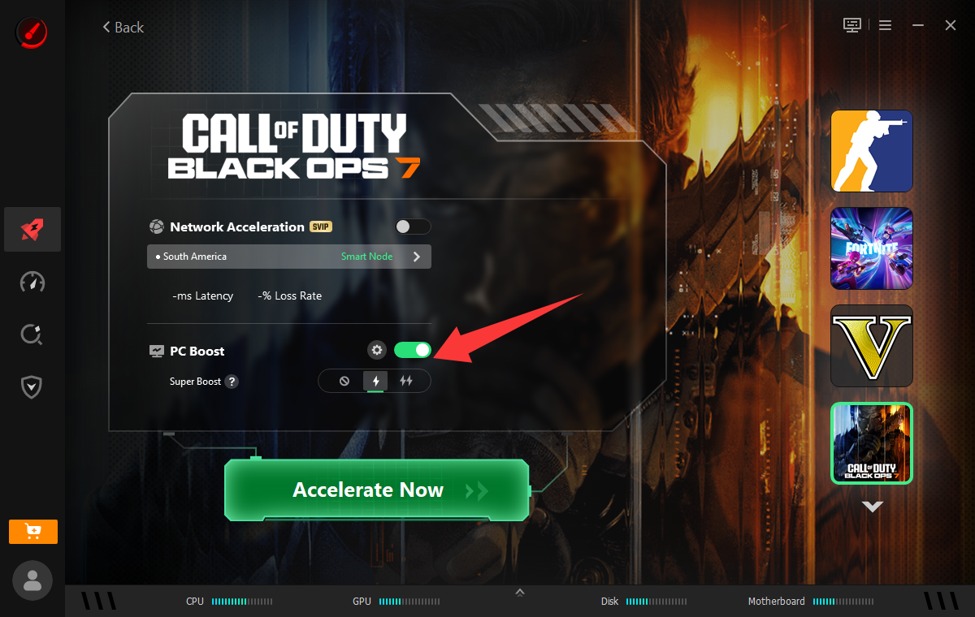
Before starting a game, use PC Boost to shut down unnecessary background apps and services. If your hardware supports it and you want extra performance, enable Super Boost to apply safe overclocking profiles for your GPU and VRAM.
This is where the “simple, user-friendly, and secure” messaging matters: you do not need deep overclocking knowledge. Smart Game Booster handles clock adjustments behind a clean slider and preset options.
3. Turn on the HUD and Real-Time Monitor
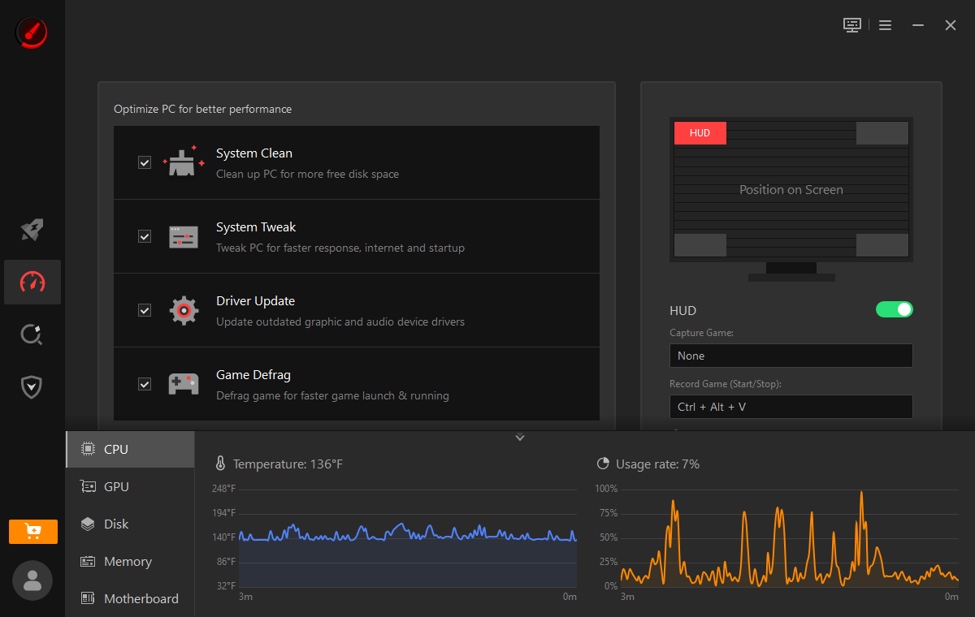
In the monitoring settings, enable the Real‑Time Monitor and toggle the HUD overlay. Choose the position on the screen where the HUD should appear. Once this is done, Smart Game Booster will display FPS and hardware stats in real time as soon as the game launches.
4. Launch your game through Game Booster
Start your game from Smart Game Booster’s interface so PC Boost, Super Boost and Network Acceleration can activate automatically. As you play:
- Watch FPS in the HUD to see if the frame rate stays stable during heavy combat or large maps.
- Check temperature bars for CPU and GPU; if they spike, you can lower settings, improve airflow, or shorten sessions.
- Observe usage percentages to identify whether CPU or GPU is the bottleneck.
Because the HUD is integrated, you maintain full awareness without leaving the action.
5. Use dual acceleration for online titles
For supported online games, enable Network Acceleration alongside PC Boost. The brand‑new Network Acceleration uses more than 500 game servers worldwide to deliver cross‑region, low‑latency and high‑bandwidth connections, bypassing blocks and restrictions.
This is especially valuable for COD, CS: GO, and Valorant, key titles where Smart Game Booster can:
- Reduce ping and cut packet loss.
- Avoid peak-hour congestion with dedicated game lines.
- Keep your in‑game FPS overlay steadier by removing lag spikes from the equation.
For games where network acceleration is not available, hardware acceleration automatically takes the lead, ensuring you still get the most common and useful form of boost: higher, more consistent FPS.
Who Should Use This Game Booster
Smart Game Booster’s real‑time temperature and FPS monitoring is useful for a wide range of players:
- Competitive gamers in titles like COD, CS: GO and Valorant who need stable FPS and predictable latency.
- Streamers and content creators who combine high graphics settings with capture software and want to ensure hardware safety.
- Casual players with mid‑range hardware who experience frame drops or crashes and want a simple, secure way to tune performance and monitor temperatures.
- Anyone planning upgrades who wants to see how their current system behaves under load and check “Can I Run It” against more than 160,000 games, 3,000+ GPUs and 9,000+ CPUs.
For average users, even those who don’t play games, Smart Game Booster can serve as a system optimization tool.
Because the Game Booster supports multiple Windows versions and a broad range of hardware, it offers a universal acceleration solution that fits most gaming setups.
Conclusion
Smart Game Booster turns real-time temperature and FPS monitoring into an everyday tool rather than something reserved for hardware nerds. Through its intuitive interface, you get live system stats right on your screen, automated thermal protection, and a quick performance bump via its built-in FPS Booster and network acceleration. It keeps your hardware running cool while boosting frame rates, letting you enjoy smoother, clutter-free gameplay without having to tweak endless settings.