
Blog
Browser Game Lag: Is The Problem Your Device, Your Wi-Fi Or The Route To The Server?

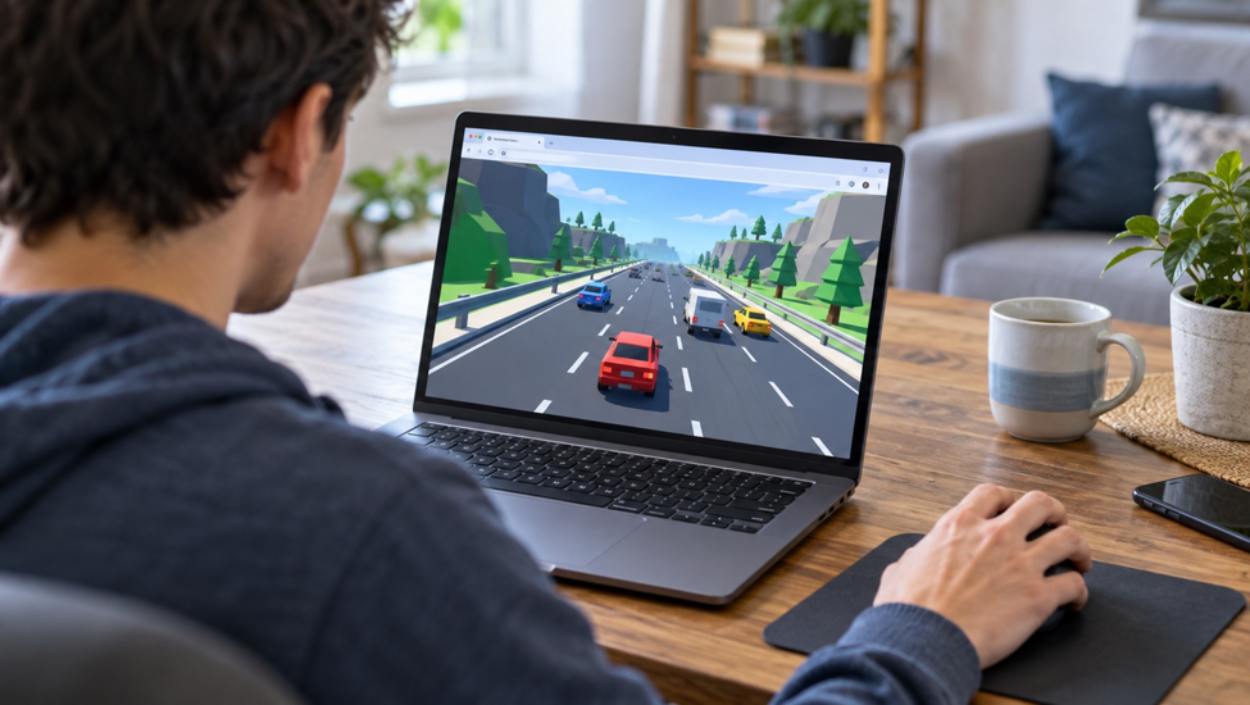
Two players can say a browser game is lagging and mean completely different things. One sees the animation jerk across the screen. The other sees smooth movement but watches a rival appear somewhere else a moment later.
That difference matters. A faster internet plan won’t necessarily fix a device struggling to draw the game, and closing tabs won’t necessarily fix a poor connection to a multiplayer server. Before changing settings or installing another tool, work out which delay you’re actually seeing.
Watch What Happens On The Screen
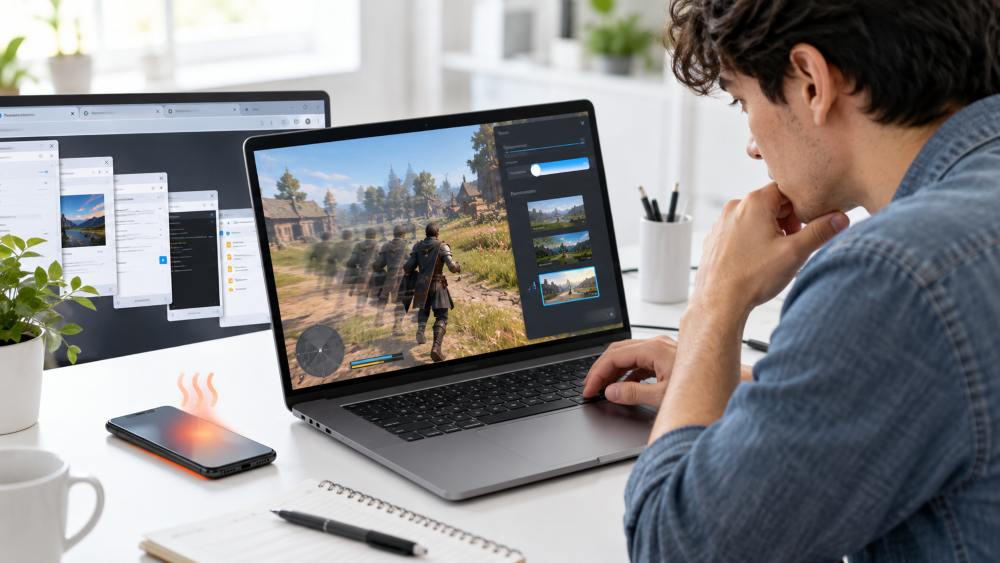
Start with the game’s own movement. Are animations choppy even when you’re moving through a menu or playing a section that doesn’t involve other players? Does the problem get worse when the scene becomes busier?
Those clues suggest that the browser or device may be struggling to keep up. Rendering is the work of turning the game’s instructions into the frames you see. It competes with other activity on the device, including busy tabs and background applications.
Try closing unnecessary tabs and apps, then reload the game. On a phone, notice whether performance deteriorates as the device gets hot. If the game offers a lower visual setting, compare it with the current one. Update the browser through its normal process rather than accepting an update offered by an advertisement.
None of these observations proves a particular fault. Together, though, they tell you whether to investigate the device before blaming the network.
Smooth Animation Can Still Hide A Slow Connection
In a multiplayer game, your device needs to exchange information with a server. The animation may remain smooth while that information arrives late. Other players can seem to jump, an action may be acknowledged slowly or the game may keep correcting your position.
Download speed measures how much data a connection can carry. Latency describes how long communication takes. A connection with impressive download numbers can still feel poor in a game that depends on quick exchanges.
Consistency matters too. One brief measurement made while the house is quiet won’t tell you how the connection behaves when several people are watching video and a large backup starts uploading.
If the game displays ping or connection warnings, note them when the problem happens. Treat them as clues about that session, not a permanent rating of your broadband provider.
Change One Thing, Then Play Again
Stay in the same game mode and compare short sessions under similar conditions. First pause downloads you control. Then, if practical, move closer to the router or compare a wired connection on a computer.
Don’t change the browser, network, server region and game settings all at once. If performance improves, you won’t know which change helped. A simple note is enough: connection used, time, what you changed and what happened.
For players who already use a VPN for Windows, include its connection status in that note. A desktop client may route the game’s traffic differently from a browser-only tool, depending on its settings. Check the scope rather than assuming every application is using the same path.
Only compare networks you are allowed to use. A workplace or school restriction is not an invitation to work around its rules.
A Different Route Is An Experiment, Not An Upgrade
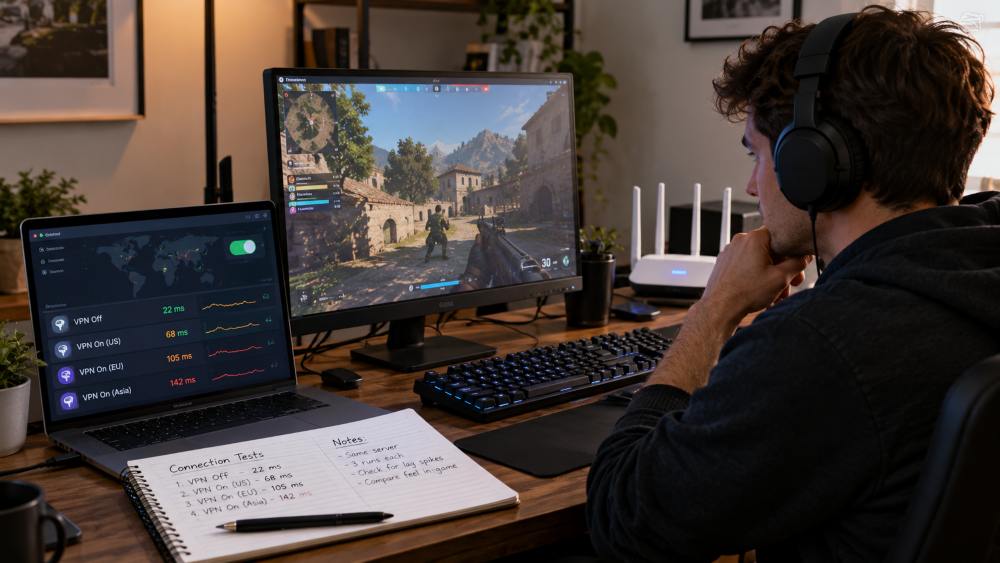
A VPN sends traffic through an additional server. That can introduce extra distance and processing, so it may make latency worse. Under some conditions, a different route can perform better. The direction of the change is something to observe, not something the word VPN guarantees.
If you want to investigate routing after the simpler checks, a free VPN can provide an optional comparison without buying a subscription first. Check what server controls are actually available on your device. If the plan chooses the location automatically, your experiment has less control over the route.
Compare more than one short session and record both the game’s connection indicator and how play feels. Don’t use a VPN-on result from a quiet morning against a VPN-off result from a busy evening. Those conditions are too different to tell you much.
If the game consistently performs worse with it enabled, that is a useful result. You have learned which setup suits this game on this connection.
Know When The Problem Is Outside Your Setup
When only one game fails while others work normally, check its service notices or support information. A busy server, a faulty update or a problem in that particular game may be beyond your control.
Avoid clearing all your browser data as a first response. Some browser games store progress locally, so check how saves work before deleting site data. Random fixes can cost you more than a slow session.
The aim is to narrow the problem: drawing the game, reaching the local network or communicating with its server. Once you know which part is struggling, the next change becomes much easier to choose.
Disclaimer
This article is provided for general informational purposes only and does not constitute professional technical support. Game performance depends on many factors, including your device, browser, network, internet provider, and the game’s own servers, so the steps described here may not resolve every problem and results will vary between setups.