
Blog
What Makes a Gaming Room More Comfortable Over Time?

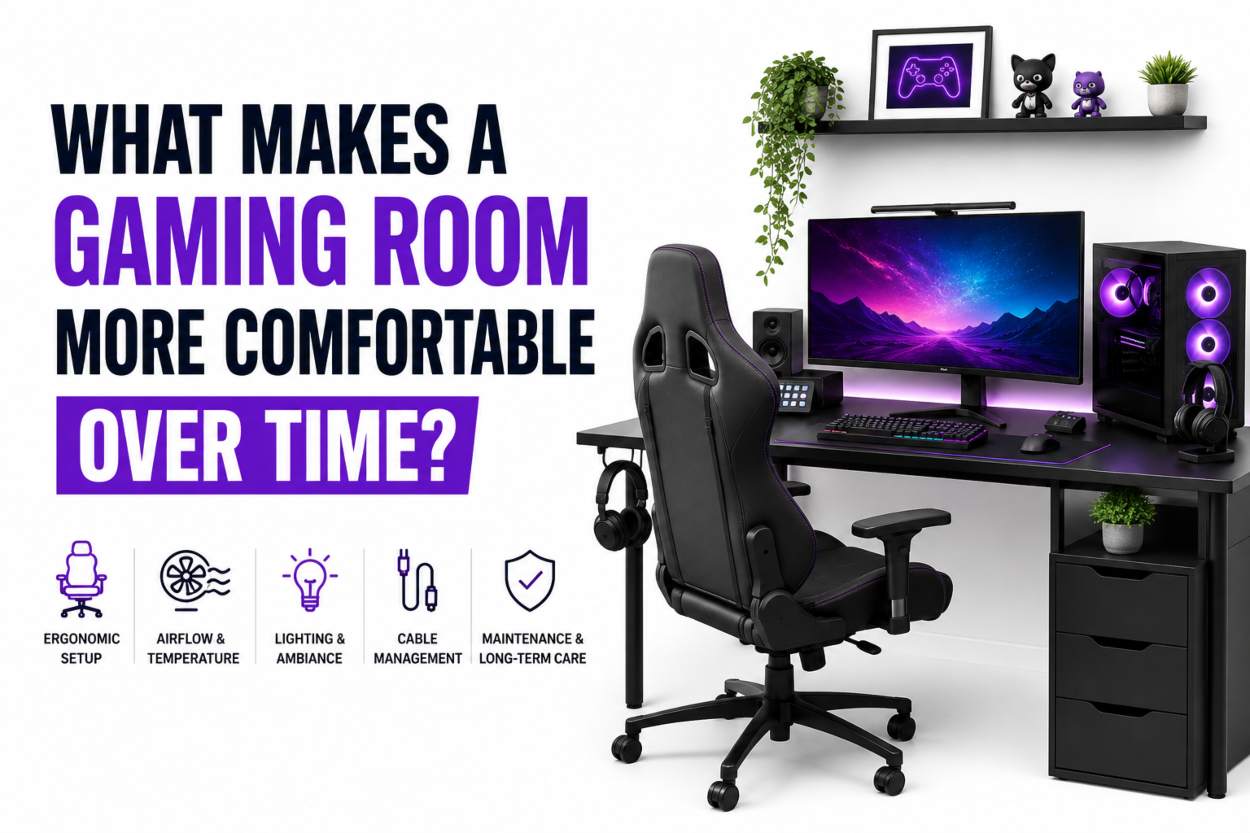
A gaming room can feel perfect during its first week.
The desk is clean, the PC is quiet, the new chair still feels supportive, and the LED lighting makes even a plain wall look intentional. Six months later, the same room may feel warmer, noisier, dustier, and more crowded. The equipment has not necessarily become worse. The room has started revealing everything that was overlooked during setup.
Long-term gaming comfort is not created by one expensive chair or a powerful graphics card. It comes from how the room handles heat, airflow, sound, cables, lighting, movement, and maintenance as the setup grows.
The strongest gaming spaces are not frozen showroom displays. They are rooms that can change without becoming uncomfortable every time another monitor, console, speaker, or charging dock is added.
Comfort Begins Where the Screens End
Most setup planning stops at the edge of the desk.
Players compare processors, monitor refresh rates, mechanical switches, headsets, and controllers. Far less thought goes into the window behind the monitor, the warm air trapped near the ceiling, the power outlet beneath the desk, or the sound passing through the wall into the next bedroom.
Those details are easy to ignore when the setup is new. They become much harder to ignore during a four-hour session in July or when a fan begins running loudly enough to be heard through the headset.
The room itself is part of the gaming hardware. It affects how long a player can sit comfortably, how loudly the cooling system has to work, how clearly voice chat can be heard, and how safely every device can be powered.
A Powerful PC Changes the Room Around It
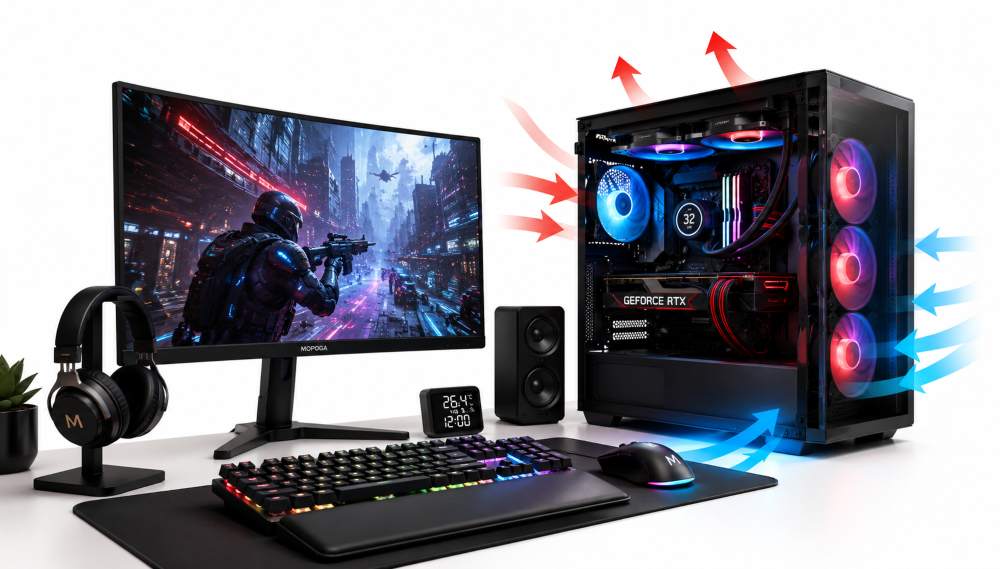
A high-performance gaming computer does more than render frames. It also adds heat to the space while the processor, graphics card, monitor, and other equipment are working.
In a large room with good airflow, that heat may go unnoticed. In a small bedroom, loft, or converted garage, the temperature can rise quickly during a demanding game. The player then lowers the thermostat for the whole house even though only one room feels warm.
Before buying another desk fan, it is worth checking where the warm air is becoming trapped.
A room may need:
- Space between the PC and the wall
- Clear intake and exhaust areas around the case
- An open path between the room and an air return
- Blinds or curtains that reduce direct afternoon sunlight
- A ceiling fan set appropriately for the season
- A door that can remain partly open without blocking movement
Players building or replacing a system should also consider how much heat the hardware is likely to place in the room. Mopoga’s guide to choosing a $2,000 pre-built gaming PC can help buyers compare performance without treating the most power-hungry option as automatically better.
The Window Can Be the Weakest Part of the Setup
A gaming room can have excellent equipment and still feel uncomfortable because of one old window.
Small gaps around the frame allow outdoor air to enter. Direct sunlight heats the display area. Thin glass transfers more outside noise. A loose blind may rattle whenever the wind picks up.
The US Department of Energy explains that air sealing reduces unwanted air leakage and can improve comfort as well as heating and cooling efficiency. Caulk is commonly used around stationary gaps, while weatherstripping is intended for moving parts such as windows and doors. (Department of Energy air-sealing guidance)
The practical fix depends on the problem. A draught may need new weatherstripping. Strong glare may need a light-filtering blind. Heat from direct sun may justify better window coverings or a different desk position.
The useful question is not simply, “How can I make the window look better?” It is, “What is this window doing to the room at the time I normally play?”
For a closer look at this part of setup planning, read Building a Better Gaming Room Starts With the Window.
Air Quality Matters More After the Room Fills Up
A new gaming room usually begins with open floor space. Over time, it collects boxes, spare parts, fabric chairs, rugs, shelves, figures, curtains, and old hardware.
Every new surface gives dust another place to settle.
Dust is not only a visual problem. It gathers around vents, fan filters, consoles, and the rear of monitors. A room with weak ventilation can also hold heat, odours, and moisture for longer than expected.
The US Environmental Protection Agency recommends improving indoor air through three main approaches: controlling pollution sources, providing suitable ventilation, and using filtration as a supplement. It also advises keeping indoor humidity below 60 percent, ideally within a range of about 30 to 50 percent. (EPA indoor-air guidance)
That does not mean every gamer needs to buy a large air purifier. Start with the room itself:
- Keep air vents clear
- Vacuum behind the desk and PC
- Clean removable fan filters
- Avoid storing unnecessary cardboard boxes near equipment
- Deal with leaks or damp areas promptly
- Open the room for ventilation when outdoor conditions allow
- Replace central heating and cooling filters according to the system’s instructions
Portable air cleaners and upgraded HVAC filters may reduce some indoor particles, but the EPA notes that filtration cannot remove every pollutant. Removing the source and improving ventilation remain important. (EPA air-cleaner guidance)
A Chair Cannot Fix a Poorly Arranged Desk.
Gaming-chair marketing often suggests that comfort can be purchased as one product. In practice, even a good chair becomes uncomfortable when the monitor, desk, keyboard, and controls are badly positioned.
A player may raise the chair to reach the mouse comfortably, then find that their feet no longer rest properly on the floor. They may lower the monitor to avoid glare, then spend every session leaning forward. A racing wheel may be attached at the right height but leave no space for the knees.
The US Occupational Safety and Health Administration’s computer-workstation resources recommend arranging a workstation around a neutral, comfortable body position. Its guidance considers the chair, monitor, input devices, desk, lighting, and available space as parts of one system rather than separate purchases. (OSHA computer-workstation guidance)
A comfortable gaming position usually allows the player to:
- Sit back without reaching for the keyboard
- Keep the monitor near a natural viewing height
- Place both feet securely
- Change posture without hitting shelves or drawers
- Reach the controller, mouse, and volume controls easily
- Leave the chair without stepping over a cable
- Move the arms without raising the shoulders
The answer is not always buying something new. Moving the monitor a few centimetres, adding a footrest, lowering an armrest, or removing a drawer unit may create more comfort than replacing the entire desk.
Players working with limited floor space may also find useful ideas in Gaming in Small Spaces.
Sound Comfort Is Not the Same as Silence
A gaming room does not need to be silent. It needs to keep unwanted sound under control.
There are usually three separate sound problems:
- Noise entering from outside
- Game and voice-chat audio disturbing other people
- Mechanical noise from fans, hard drives, controllers, or furniture
These problems need different solutions.
A thicker curtain may soften outside traffic noise but will not stop a vibrating PC case. Acoustic wall panels may reduce echo inside the room but will not fully block sound passing through a thin door. Replacing a noisy case fan is more useful than covering every wall with foam.
Headsets also need sensible volume control. The National Institute for Occupational Safety and Health explains that hearing risk depends on how loud a sound is, how long exposure lasts, and how often it is repeated. Its workplace recommendation uses 85 dBA over an eight-hour day as an exposure limit, though personal listening conditions and consumer devices vary. (CDC and NIOSH noise guidance)
A practical rule is to avoid using high volume to overpower other noise. Fixing a rattling fan, closing a gap around the door, or reducing room echo may allow the headset to remain at a lower, clearer level.
Cable Management Should Survive Daily Use
A setup can look extremely tidy in a photograph and still be annoying to use.
Cables tied too tightly beneath the desk make upgrades difficult. A charging lead that barely reaches the chair gets pulled every evening. An extension cord hidden under a rug looks cleaner but creates a worse arrangement.
Good cable management should make equipment easier to use, inspect, and replace.
Start by separating cables according to purpose:
- Permanent power connections
- Display and network cables
- Controller and headset charging leads
- Temporary accessories
- Equipment that is moved between rooms
Permanent cables can be guided through trays or clips. Frequently used charging leads should remain easy to reach. Temporary cables need a place to go when they are disconnected.
The US Consumer Product Safety Commission warns that extension cords lacking important safety characteristics can present electrical shock or fire risks. Cords should be suitable for their intended use and should not become a permanent substitute for properly located outlets. (CPSC extension-cord information)
For broader advice about power, equipment placement, and physical protection, see Mopoga’s guide to protecting your gaming setup.
A Stable Connection Adds a Different Kind of Comfort
Comfort is not only physical. A room becomes frustrating when online matches are interrupted by weak Wi-Fi, packet loss, or a cable that disconnects whenever the desk moves.
Players often respond by buying a new router before identifying the actual problem.
The problem may be:
- A router positioned behind thick walls
- Interference from nearby devices
- An old Ethernet cable
- A damaged connector
- A cable bent tightly behind furniture
- Background downloads using available bandwidth
- A PC network driver that has not been maintained
A wired connection can be a sensible choice for a fixed gaming desk, but buying the highest cable category available does not automatically improve the internet service. Cable length, equipment support, installation quality, and the speed provided by the network all matter.
Mopoga’s comparison of Cat 6 and Cat 7 Ethernet cables can help players avoid paying for a specification their setup cannot use.
Lighting Should Help the Eyes Read the Room
Decorative lighting is part of gaming culture, but a room filled with bright colour is not always a comfortable room.
A glowing wall behind the monitor may reduce the harsh contrast between the screen and a dark room. At the same time, an uncovered LED strip reflected directly in the display can become distracting. A ceiling light positioned behind the player may create glare across the monitor.
A practical gaming room normally needs more than one lighting mode:
- General lighting for cleaning and rearranging equipment
- Softer lighting for normal play
- A task light for building or repairing hardware
- Safe lighting between the desk and the doorway
- Natural-light control during daytime sessions
Players should also think about controls. Lighting that requires crawling beneath a desk to reach a switch will become irritating very quickly. Smart controls, reachable switches, or a well-positioned power button can make the room easier to use every day.
For layout ideas, Mopoga’s LED placement guide for gaming setups covers practical locations rather than treating every wall as a place for another strip.
When the Gaming Room Is Inside a Garage
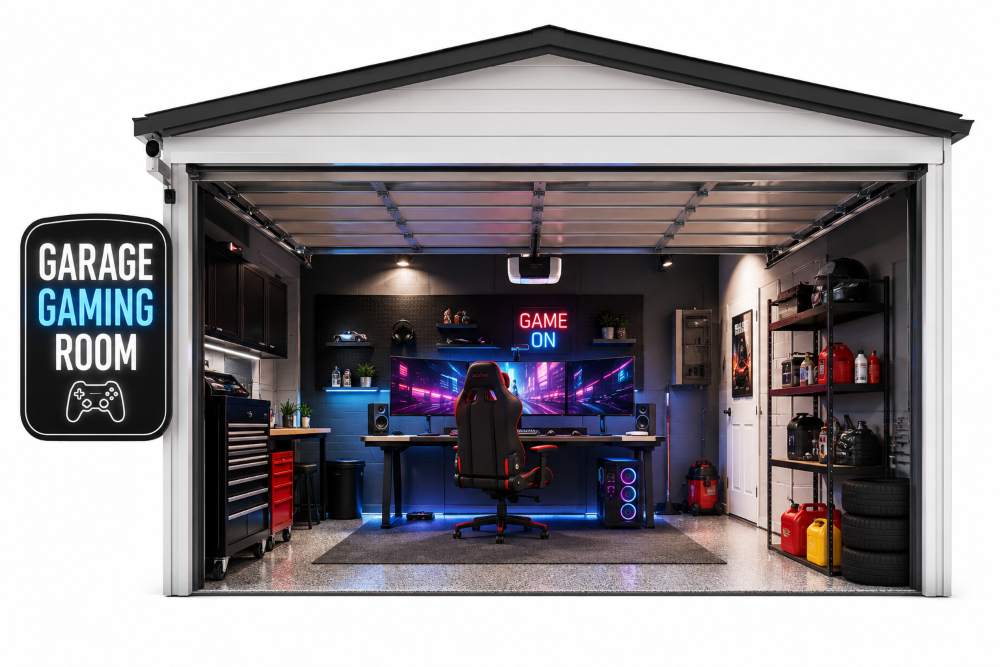
A garage can appear to offer everything a gaming room needs: open floor space, separation from bedrooms, and enough room for a larger desk or simulator.
The weaknesses often appear after the first change in weather.
Garage walls and doors may not control temperature or outside air as effectively as the main living area. Gaps around a large overhead door can allow draughts, dust, noise, and moisture into the space. The room may feel comfortable in mild weather but become difficult to heat or cool later.
ENERGY STAR notes that attached garages should be air-sealed to reduce the movement of automobile exhaust into living areas. This separation is important even when part of a garage is used as a hobby or gaming space. (ENERGY STAR indoor-air features)
A garage door that closes unevenly, leaves visible gaps, shakes, or makes unusual mechanical noises should not be treated as a simple decoration problem. For a gaming household using this space regularly, arranging professional garage door repair can help address the door’s operation and perimeter sealing before the room is filled with more expensive hardware.
Homeowners should not attempt to adjust loaded springs, cables, or unfamiliar counterbalance parts themselves. The Door and Access Systems Manufacturers Association warns that garage-door springs and cables can present injury risks and recommends trained technicians for work involving high spring tension. (DASMA garage-door safety guidance)
Automatic garage-door operators are also covered by a mandatory US consumer safety standard relating to their operation and protective features. (CPSC garage-door operator information)
A garage gaming room should also keep vehicles, fuels, paints, solvents, and other strong-smelling products separate from the occupied area. A gaming chair and carpet do not turn an unsuitable garage into a finished living room by themselves.
Setup Needs a Reset Every Few Months
Gaming rooms rarely become uncomfortable overnight. Problems build slowly.
A fan becomes slightly louder. One more charging cable crosses the floor. Boxes collect near the air vent. The monitor moves sideways to make room for another screen. The player adapts to each small inconvenience until the entire setup feels tiring.
A simple seasonal reset can prevent that buildup.
Check the Room
Look for draughts, blocked vents, moisture, glare, and areas where dust returns quickly.
| Checklist Item | What to Check |
|---|---|
| Check the Desk | Make sure the monitor, chair, keyboard, controller, and foot position are aligned for comfort and efficient gameplay. |
| Check the Hardware | Clean dust filters, listen for unusual fan noise, monitor system temperatures, and disable unnecessary startup programs. If your PC feels slow, Optimize Your PC for Maximum Performance in 2026. |
| Check the Floor | Clear away unused cables, boxes, bags, and accessories to keep the walking area safe and organized. |
| Check the Power | Inspect power cords for damage, ensure plugs are secure, avoid overloading outlets, and keep power strips accessible for regular inspection. |
| Check What Is No Longer Used | Remove or store unused equipment, such as an extra monitor, old console, broken chair, or unused steering wheel, to free up valuable space. |
Best Upgrade May Not Appear on a Specification Sheet
Gaming-room comfort is usually lost through accumulation.
More hardware creates more heat. More accessories create more cables. More shelves reduce movement. Longer sessions make poor chair and monitor positions harder to ignore.
The answer is not to stop upgrading. It is to make each upgrade earn its place in the room.
A new monitor should not block ventilation. A new console should have a safe power connection. A larger desk should not remove the only clear route to the door. Decorative lighting should not make the screen harder to see.
The most comfortable gaming room is not necessarily the most impressive one. It is the room where the player can sit down, start a game, and forget about the room because nothing in it is demanding attention.
That kind of comfort is built slowly through maintenance, sensible layout changes, and a willingness to remove what no longer helps.
Disclaimer: This article provides general gaming-room and home-maintenance information. It is not a substitute for electrical, HVAC, construction, hearing, ergonomic, or garage-door advice from a qualified professional. Stop using equipment that appears damaged or unsafe, and hire appropriately trained local technicians for structural, electrical, or high-tension mechanical work.