
Blog
Key Steps Before Moving Business Mailboxes to the Cloud


Moving business mailboxes to the cloud requires careful planning. Without the right preparation, businesses may face communication problems, missing data, login issues, and delays during deployment. A structured migration process helps organizations keep mail flow stable while preparing users, accounts, systems, and data for the transition.
Many businesses choose to work with an Office 365 migration company during the planning stage. This can help them review mailbox sizes, user needs, existing email settings, and technical requirements before the migration begins. Early checks can also identify outdated configurations, unsupported applications, and synchronization issues that may affect the accuracy of the migration.
Cloud mailbox migration is not only a technical task. It also affects daily communication, employee productivity, security, and long-term email management. That is why every important step should be reviewed before moving business mailboxes to a cloud-based platform.
Review Existing Mailbox Environments
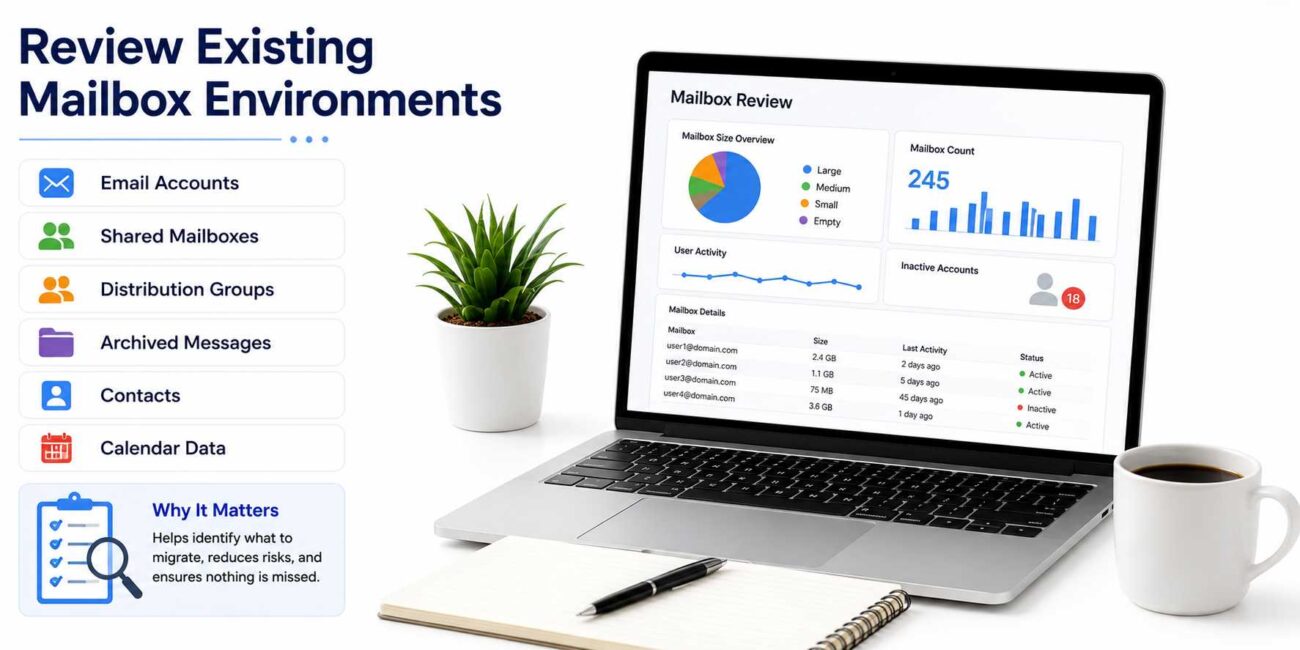
A detailed review of the current mailbox environment helps businesses understand what needs to be moved. Email accounts, shared mailboxes, distribution groups, archived messages, contacts, and calendar data should all be evaluated before the migration process starts.
This step helps reduce the risk of missing data after deployment. It also gives technical teams a clearer view of mailbox size, user activity, and possible migration challenges.
Organizations should also identify inactive accounts and unnecessary mailbox data before migration begins. Removing outdated information can simplify mailbox management and reduce the amount of data that needs to be transferred.
Important Areas to Evaluate
| Area | Why It Matters |
|---|---|
| Active mailbox accounts | Ensures all current users are included in the migration plan |
| Inactive accounts | Helps remove unnecessary mailboxes before migration |
| Shared mailboxes | Prevents access issues for teams using common inboxes |
| Distribution groups | Supports smooth internal communication after migration |
| Mailbox sizes | Helps estimate migration time and storage needs |
| Calendar and contact data | Protects important scheduling and communication records |
| Archive data | Ensures older business emails remain accessible |
| Login and authentication settings | Helps avoid user access problems after migration |
Verify Network and System Readiness
Reliable network performance plays an important role in cloud mailbox migration. Slow internet connections, unstable bandwidth, and outdated infrastructure can interrupt mailbox transfers and affect synchronization accuracy.
Before migration begins, businesses should check whether their network can handle the data transfer. A weak or unstable network may increase downtime, slow down mailbox movement, and create errors during synchronization.
Technical teams should also review firewall settings, DNS records, authentication methods, and device compatibility. These checks help maintain secure mail flow and stable access after migration is complete.
System Readiness Checks
Before starting the migration, businesses should review:
| Check | Purpose |
|---|---|
| Internet speed and bandwidth | Supports faster and more stable mailbox transfers |
| Firewall settings | Prevents blocked connections during migration |
| DNS records | Helps maintain correct email routing |
| Authentication settings | Supports secure login and user access |
| Device compatibility | Ensures users can access email on desktops and mobile devices |
| Existing email applications | Identifies outdated or unsupported tools |
Prepare Users and Access Permissions
User preparation is one of the most important parts of a successful mailbox migration. Employees should understand how login credentials, mailbox access, email apps, and account synchronization may change during the transition.
Clear communication can reduce confusion and lower the number of support requests during and after migration. Users should know when the migration will happen, what they need to do, and who to contact if they face access issues.
Access permissions should also be reviewed before migration starts. Incorrect permissions can affect shared mailboxes, delegated accounts, calendars, and internal workflows.
User Preparation Checklist
| Task | Benefit |
|---|---|
| Verify account credentials | Helps users log in smoothly after migration |
| Review mailbox permissions | Prevents shared mailbox access issues |
| Confirm delegation settings | Supports assistants, managers, and team workflows |
| Check mobile email setup | Reduces access problems on phones and tablets |
| Review desktop email apps | Ensures Outlook or other clients are ready |
| Identify large mailbox users | Helps plan storage and migration timing |
| Notify employees early | Reduces confusion and support requests |
Validate Data Before Migration
Data validation helps prevent incomplete mailbox transfers and synchronization problems. Before moving mailboxes to the cloud, technical teams should review mailbox integrity, attachments, archives, folders, and calendar data.
This step is important because damaged mailbox items or missing archive data can create problems after migration. A clean validation process supports better migration accuracy and reduces the need for troubleshooting later.
Many organizations rely on an Office 365 migration company to perform pre-migration checks. These checks can help identify mailbox inconsistencies, configuration conflicts, and data issues before the transfer begins.
Data That Should Be Checked
Businesses should review important data types before migration, including:
| Data Type | What to Confirm |
|---|---|
| Emails | Messages are accessible and ready for transfer |
| Attachments | Important files open correctly |
| Folders | Folder structure is organized and complete |
| Archives | Older emails are available for migration |
| Contacts | Business contacts are preserved |
| Calendars | Meetings and schedules are synchronized |
| Shared mailbox data | Team mailboxes remain accessible |
Pick the Right Email Migration Specialist
Choosing the right email migration specialist can make the process more organized and secure. Experienced professionals can evaluate the current email environment, identify technical issues, review mailbox data, and create a clear migration plan.
A reliable migration specialist can also help reduce risks during deployment. This includes maintaining stable mail flow, protecting data, managing access permissions, and solving configuration problems before they affect users.
Businesses should look for a specialist who understands cloud email platforms, security requirements, compliance needs, and user support. The right support can make the migration smoother and reduce disruption to daily operations.
What to Look for in a Migration Specialist
| Quality | Why It Matters |
|---|---|
| Experience with business email migrations | Helps avoid common migration mistakes |
| Knowledge of Office 365 environments | Supports smoother cloud mailbox setup |
| Security awareness | Protects sensitive business communication |
| Clear migration planning | Reduces confusion and delays |
| Post-migration support | Helps fix issues after deployment |
| User access management | Prevents login and permission problems |
Plan Post-Migration Verification
Post-migration verification helps confirm that mailboxes are working correctly after deployment. This step should not be skipped because small issues can affect communication, productivity, and user confidence.
After the migration, businesses should check login access, email delivery, folder structure, calendar synchronization, shared mailbox permissions, and mobile device access. These checks help confirm that users can continue their daily work without major problems.
A complete verification process also helps identify configuration issues early. Fixing these problems quickly can prevent larger workflow disruptions later.
Post-Migration Items to Review
| Item | What to Check |
|---|---|
| User login access | Users can sign in without errors |
| Email sending and receiving | Mail flow is working correctly |
| Folder structure | Emails are organized as expected |
| Calendar synchronization | Meetings and appointments appear correctly |
| Shared mailbox access | Teams can access shared inboxes |
| Mobile email access | Phones and tablets are connected properly |
| Email rules and forwarding | Automation settings are working |
| Archive access | Older emails remain available |
Common Mistakes to Avoid During Mailbox Migration
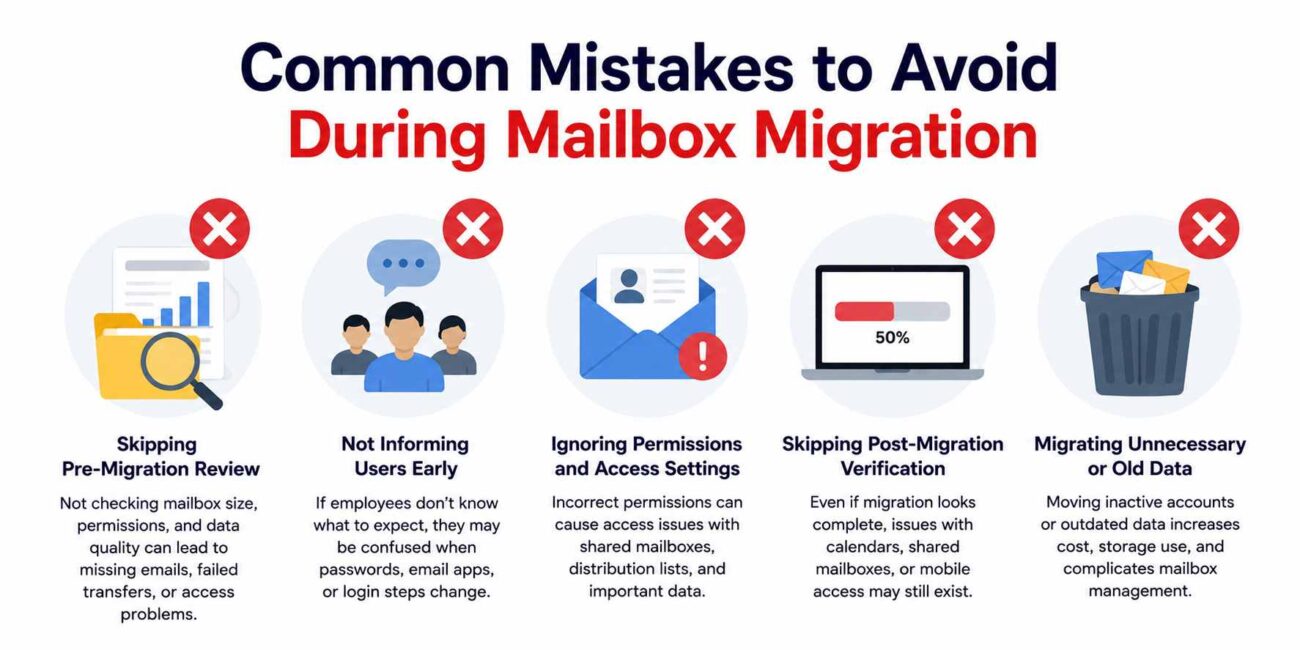
Cloud mailbox migration can become difficult when businesses rush the process. One common mistake is starting the migration without reviewing mailbox size, permissions, and data quality. This can lead to missing emails, failed transfers, or access problems after deployment.
Another mistake is not informing employees early enough. If users do not know what to expect, they may become confused when passwords, email apps, or login steps change.
Businesses should also avoid skipping post-migration checks. Even if the migration appears complete, there may still be small issues with calendars, shared mailboxes, or mobile email access.
Mistakes That Can Cause Problems
| Mistake | Possible Result |
|---|---|
| Poor planning | Delays and communication issues |
| Ignoring inactive accounts | Unnecessary data transfer |
| Not checking permissions | Shared mailbox access problems |
| Weak network readiness | Slow or failed migration |
| No user communication | Confusion and support requests |
| Skipping validation | Missing or incomplete data |
| No post-migration review | Problems remain unnoticed |
Final Conclusion
Moving business mailboxes to the cloud can improve email access, storage flexibility, security, and long-term communication management. However, a successful migration depends on careful preparation before the process begins.
Businesses should review their existing mailbox environment, check network and system readiness, prepare users, validate data, review permissions, and plan post-migration testing. These steps help reduce the risk of data loss, login problems, mail flow issues, and business disruption.
Working with an experienced migration specialist or an Office 365 migration company can also help organizations manage the process more smoothly. With the right planning and verification, businesses can move their mailboxes to the cloud with better control, fewer interruptions, and stronger long-term email performance.