
Blog
How to Create Consistent AI Characters with Nano Banana 2.1 and Kling 4.0

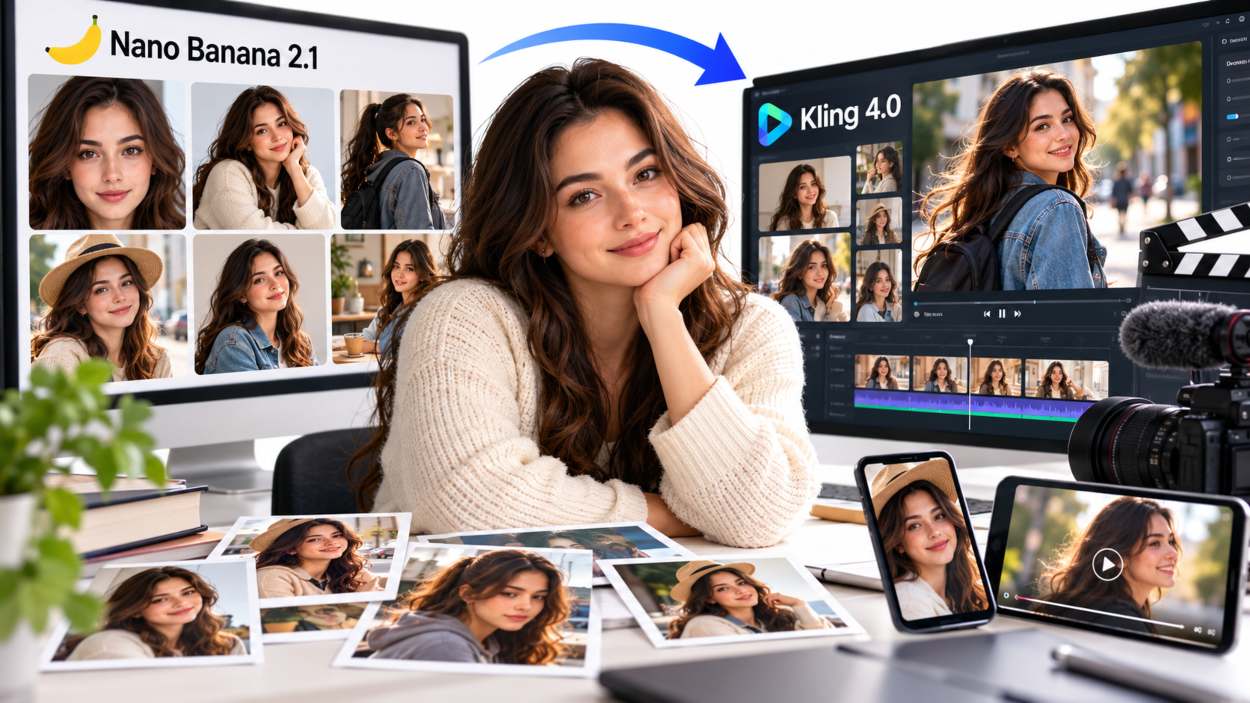
Keeping a character consistent across images and videos can be harder than it seems. Facial features may change, small details can disappear, and proportions may shift from one scene to the next.
Nano Banana 2.1 and Kling 4.0 can work together on Pollo AI to solve this problem. Nano Banana 2.1 helps establish a consistent visual identity, while Kling 4.0 brings that character to life through motion. This guide walks you through the process, with tips for creating social media series, brand mascots, ads, and videos that need a recognizable character.
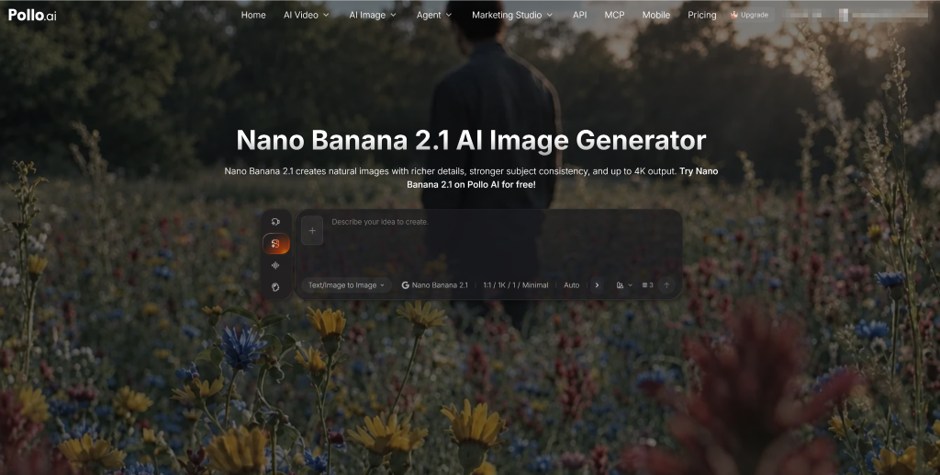
Step 1: Define the Character
Write a short character profile before you create. This profile should cover the features that must remain unchanged.
Include details such as:
- Age and build
- Face shape and skin tone
- Eye color and hairstyle
- Clothing and accessories
- Visual style
Step 2: Create a Clear Character Sheet
Use Nano Banana 2.1 on Pollo AI to create a character sheet before designing full scenes. A useful sheet shows the character from several angles against a plain background.
Nano Banana 2.1 offers improved detail, composition, and realism. It can generate images at up to 4K, which helps preserve small features in close-ups and wider scenes.
Step 3: Select One Master Design
Select a result with a clear face, natural proportions, and visible signature details.
You can also use Nano Banana 2.1 to refine the selected design. Keep the character unchanged while correcting only the problem area. If the jacket color is wrong, for example, request a color adjustment instead of generating a completely new person.
Create a small reference pack from the final design. It should include a headshot, a full-body view, side angles, key expressions, and any important props.
Step 4: Generate Scenes With Multiple References
Nano Banana 2.1 can combine up to 14 reference images. These references can guide the character, clothing, products, props, and environment.
Assign a clear purpose to each image. However, more references do not automatically produce a better result. Only include images that provide useful and compatible guidance.
Create the key scene images in Nano Banana 2.1 before moving to video. If your story has five shots, prepare a strong starting frame for each one. Keep the same master references and character description across all five.
Keep Prompts Structured
Use a repeatable prompt structure for each scene. Only change the action, setting, or framing between prompts. Rewriting the character description every time can introduce unwanted differences.
Step 6: Animate the Character in Kling 4.0
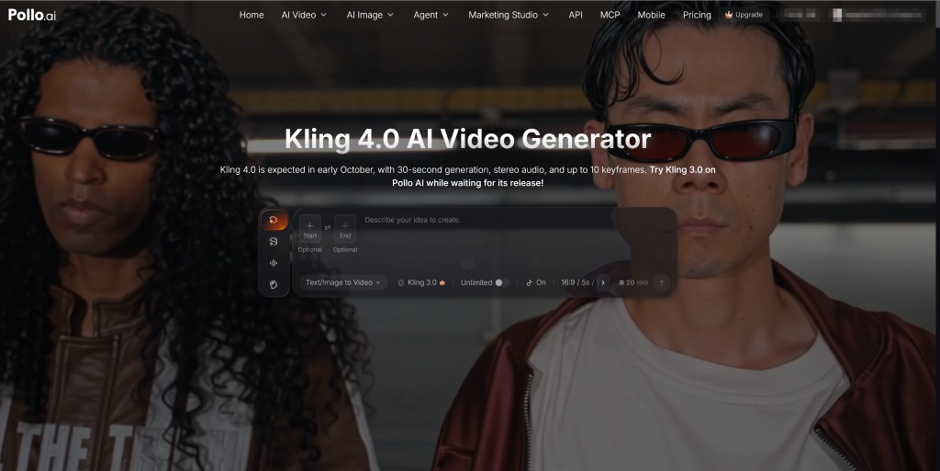
Once the still images are consistent, import them into Kling 4.0. Go to pollo.ai/m/kling-4-0 and use your strongest scene image as the opening frame and add supporting references where needed.
Kling 4.0 can combine up to 15 references to guide visuals, movement, and voice. This makes it useful for maintaining a character across multiple video clips. It also supports up to 10 keyframes, allowing you to define important moments within a scene.
For example, you could set keyframes for:
- The character looking at a product
- Picking it up
- Turning toward the camera
- Smiling and presenting it
Keep the motion instructions simple. Complex physical actions can cause the face, hands, or clothing to drift. Begin with natural movements such as walking slowly, turning the head, raising an object, or changing expression.
Step 7: Control Duration, Voice, and Camera Movement
Kling 4.0 can generate up to 30 seconds in one pass. However, a shorter clip is often easier to control. Test the scene at a short duration before generating the final version.
Describe camera movement clearly. If the character speaks, use the same voice reference throughout the project. Kling 4.0 supports voice generation in nine languages, including regional accents and dialects. Keep the speaking style, pace, and tone in your character guide.
Longer stories can be built through video extension, with Kling supporting sequences of up to two minutes across multiple generations. Use the ending frame of one clip to guide the next section.
Step 8: Review Every Scene Before Continuing
Check each image and video before creating the next one. Look for changes in:
- Face shape and eye color
- Hair length or texture
- Clothing colors and patterns
- Accessories and props
- Height and body proportions
- Voice, accent, and speaking pace
If a scene has a serious consistency problem, regenerate it early. Small errors often become more noticeable when several clips are edited together.
Final Thoughts
Strong references matter more than oversized prompts. Define your character clearly, reuse the same visual assets, and make one change at a time. This focused approach helps you create more consistent AI characters across images, videos, and complete campaigns.
The workflow is simple: design first, animate second. Use Nano Banana 2.1 to create a master character sheet, build a reference pack, and generate consistent scene images. Then use Kling 4.0 to add controlled movement, voice, and camera direction.
Start creating with Pollo AI today.