
Blog
How Driver Booster Fixed Multiple Problems On My Computer In Under 3 Minutes

I had one of those mornings where everything seemed to go wrong at once. My speakers were silent after a Windows update, my Wi Fi icon had a warning triangle, and a game I wanted to play kept crashing on launch. Restarting did nothing, Device Manager only showed vague warnings, and I did not have time to spend the whole day digging for drivers.
That was the day I finally gave up on doing everything manually and installed Driver Booster. Within a couple of minutes, it had scanned my system, updated the right drivers and used its repair tools to fix the three most annoying issues that had piled up overnight.
What Was Going Wrong On My PC
Before I installed anything, here is what I was dealing with:
- No sound from my speakers or headset, even though Windows showed the volume icon as normal.
- Intermittent network connection, with the adapter randomly dropping and reconnecting.
- A game that had been working fine just a week earlier is now crashing before the main menu.
I knew from experience that driver problems can cause exactly this kind of chaos. But tracking down each driver by hand, visiting multiple vendor sites, and hoping I picked the right version felt like the worst possible way to spend my morning.
Why I Reached For Driver Booster
I had heard that Driver Booster could detect outdated, missing and faulty drivers and update them in one click, so I went to the official page to check the details. According to IObit, Driver Booster 13 Free is a driver updater that supports Windows 11, 10, 8.1, 8, 7, Vista and XP and is designed to keep drivers current for graphics, audio, network, USB, printer, mouse, keyboard, scanner and more.
What really convinced me to try it were these points:
- It relies on a massive driver database, with the Free edition covering 12 million drivers and the Pro edition accessing over 18,000,000 verified drivers.
- All drivers are sourced from official manufacturer sites or Windows itself and must pass Microsoft WHQL testing and IObit review rules, which reduces the risk of installing unsafe or incompatible drivers.
- It offers one-click driver updates after scanning, so I do not have to search manually.
- It includes tools specifically aimed at fixing No Sound, Network Failure, Bad Resolution and Device Errors, which lined up perfectly with my situation.
At that point, letting Driver Booster have a shot felt smarter than continuing to fight with Device Manager on my own.
Step 1: Install And Scan, Under A Minute
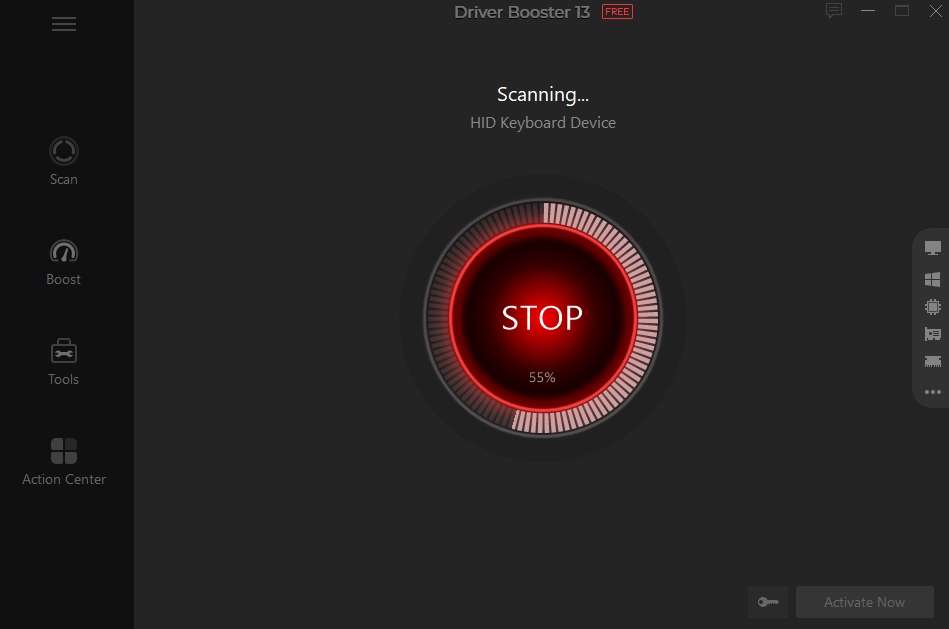
I installed Driver Booster 13 Free and launched it. The program immediately scanned my system and reported a list of outdated and faulty drivers. In my case, it flagged:
- An outdated audio driver
- A problematic network adapter driver
- Several game-related components that were behind, including graphics-related items
The scan itself took less than a minute on my machine. Seeing everything laid out in one list, with current versions and available versions side by side, was a lot more helpful than the vague messages in Device Manager.
Step 2: One-Click Update For Critical Drivers
Instead of updating everything at once, I focused on the drivers tied to my problems. I selected the audio, network and key graphics related drivers from the list and clicked Update. Driver Booster downloaded the latest versions from its verified sources and installed them automatically.
During the process, it created backups and a restore point, which meant that if something went wrong, I could roll back to the previous state. That safety net made it easier to approve multiple updates at once without worrying that I would break something permanently.
Step 3: Using The Repair Tools For Instant Fixes
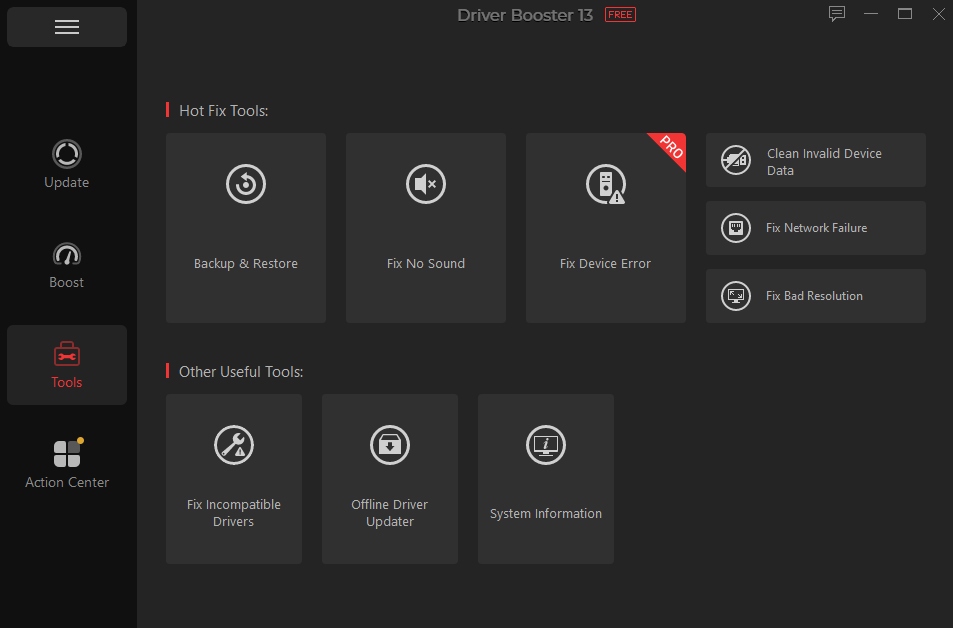
Even before the updates finished, I opened the Tools section to see what else I could do. This turned out to be the real shortcut to solving my specific problems.
For the sound issue, I clicked Fix No Sound. Driver Booster checked the audio driver and related services, applied the necessary repair, and once the driver update was completed, my speakers came back to life.
For the network drops, I used Fix Network Failure. It refreshed the network adapter driver and reset a few settings behind the scenes. The warning triangle disappeared, and my connection stayed stable.
These tools are designed exactly for these common Windows problems, and they saved me from digging through multiple control panels and support articles.
Step 4: Helping Games Run Properly Again
With audio and network working, I tried launching the game that had been crashing. It still complained about a missing component on the first attempt, so I went back to Driver Booster.
I noticed that the scan had also flagged some game-related drivers and components, such as graphics driver updates and gaming frameworks. Driver Booster can prioritise game drivers and game components and install Game Ready drivers from vendors like NVIDIA, AMD and Intel.
After letting it update those items, I restarted the PC. This time, the game launched normally, with smoother performance thanks to the updated graphics driver and game components.
How It All Fits Inside Three Minutes
From launching Driver Booster to having sound, network, and the game working again took roughly the length of a coffee break:
- About one minute for installation and the first scan.
- Another minute for the critical driver downloads to complete.
- Less than a minute to run the Fix No Sound and Fix Network Failure tools and restart once.
Of course, internet speed and hardware affect the exact time, but the key point is that everything happened inside a single program without me visiting a single manufacturer’s site.
What Makes Driver Booster Faster Than Doing It By Hand
The reason this felt so quick is not magic; it is simple efficiency:
- The scan checks all devices at once and compares them against its large driver database, instead of me inspecting each device manually in Device Manager.
- It knows which drivers are certified and compatible for my version of Windows, so I do not have to cross-check part numbers and OS versions on several vendor pages.
- It handles backup, installation and cleanup in one pass, including deleting outdated driver packages if I select that option.
- The repair tools bundle together common fixes for sound, network and resolution issues, saving me from testing random forum suggestions.
That is what turned a problem that could have taken an afternoon into a quick maintenance step.
Benefits That Stayed After The Quick Fix
The interesting thing is, the Driver Booster didn’t just solve that one bad morning. Keeping it installed has given me ongoing benefits:
- Regularly scheduled scans mean drivers stay current without me thinking about it.
- When a big Windows update arrives, I run a scan afterward and let Driver Booster refresh anything that lost compatibility, which has reduced blue screens and device glitches.
- Game performance is more consistent, since graphics drivers and game components are always up to date, and Game Boost can shut down unnecessary background processes while I play.
- It has taken over the role of full-time driver manager, which I did not want.
A Few Things I Still Watch Out For
Even though I rely on Driver Booster heavily, I keep a couple of things in mind:
- I avoid running huge batches of updates right before an important call or deadline, because some changes require a restart.
- On the rare occasion that a new driver behaves oddly, I use the backup and restore options or revert through the system restore point that Driver Booster created.
- I review the list before clicking Update All, to stay aware of what is changing.
- Those simple habits let me enjoy the speed of one-click updates without losing control of my system.
Why I Reach For Driver Booster First Now
That hectic morning showed me how much time I had been wasting on manual driver hunting. Since then, whenever sound fails, a device disappears, or a game complains about requirements, my first step is to open Driver Booster, not a web browser. This driver updater has become my go-to because it removes all the guesswork, no more sifting through manufacturer websites or deciphering version numbers.
With its large verified driver database, one-click updates and focused repair tools, it has proven that fixing multiple driver-related problems does not have to be a long, frustrating process. For me, the fact that it handled three separate issues in roughly three minutes was the moment it went from “nice utility” to “must-have tool” on my PC.